Upload a photo
Choose one clear JPG, PNG or WebP photo under 10 MB.
Your photo
Best with clear portraits, pets, and simple scenes. AI may simplify details and backgrounds. Night photos and busy scenes may produce poor results.
2 credits per image · 10 welcome credits with Google sign-in. See pricing
Your photo.
Ready to color.
Choose one clear JPG, PNG or WebP photo under 10 MB.
Sign in, review the 2-credit cost and create one black-and-white image.
Check the outlines, save the result and print using your usual settings.
These examples use the tested model and the same black-and-white processing as the tool. Original photos are shown beside their results.
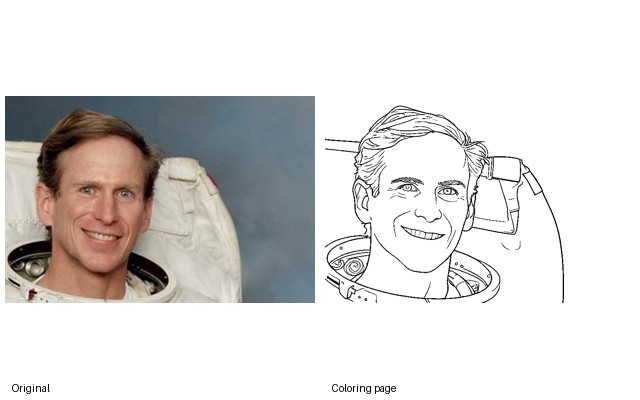
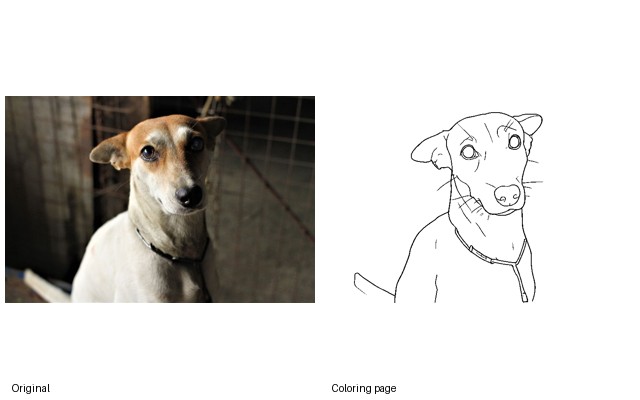
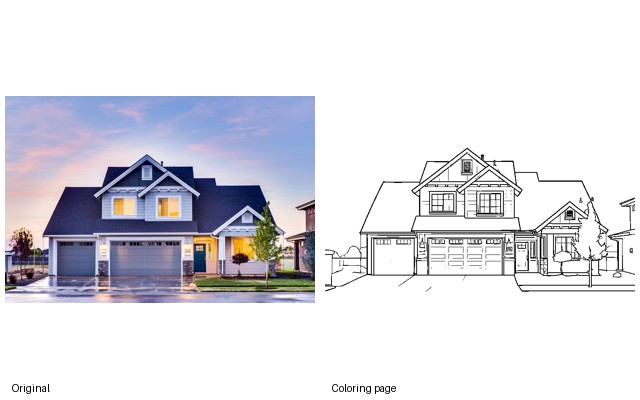
Start with a well-lit photo where the subject stands out from the background. Portraits, pets, houses and individual objects are good starting points. Simple compositions leave larger open regions to color. Choose a recognizable subject with space around it.
The model redraws your photo. It may remove background clutter, simplify hair and fur, or change architectural details. Check important features before printing. This is a creative interpretation, not exact tracing or a guaranteed likeness.
Night scenes, light streaks, deep shadows and busy textures can produce dense lines or invented details. Try a brighter, simpler photo if the result is confusing. Black-and-white processing removes gray tones but cannot restore missing features or correct invented shapes.
One coloring page costs 2 credits. New accounts receive 10 welcome credits once after Google sign-in, so you can try up to five images without entering credit-card details. All tools share the same balance. If you use all 300 monthly Pro credits here, that covers 150 successful generations; see pricing and credit packs for current options.
Credits are reserved when a job starts and confirmed after a valid result is saved. System failures return the reserved amount. Another generation costs 2 credits; downloading again is free. Review the limitations before creating another coloring page.
Preview and download use the same black-and-white PNG. Download within one hour of completion. Unfinished jobs expire two hours after creation, and expired files are removed by scheduled cleanup. The PNG can be printed, but this version does not create PDF, SVG, print layouts or a guaranteed 300 DPI file.
Upload a JPG, PNG or WebP photo, sign in with Google and choose Generate coloring page. Pixform creates simplified black outlines on white. Review the result and download the PNG.
New accounts get 10 welcome credits once with Google sign-in, enough for up to five coloring pages. No credit card is required to use welcome credits.
Each generation costs 2 credits from your shared Pixform balance. Generating again costs another 2 credits. Downloading the same completed result is free.
Choose a clear portrait, pet, house or object in good light with a simple background. Night photos, tiny subjects and dense textures may produce missing outlines, clutter or invented details.
No. AI redraws the photo and may simplify faces, hair, background objects and other small details. The result is a creative coloring page, not exact tracing or an identity-preserving reproduction.
Yes. Use a modern mobile browser and upload a JPG, PNG or WebP photo under 10 MB. Photos are prepared at up to 768 pixels on the longest side. HEIC files need to be converted first.
Yes. Download the black-and-white PNG and use your usual print settings. Output dimensions can differ from your upload. Large prints may look soft; PDF, SVG, A4 layout and 300 DPI output are not included.
Pixform reserves 2 credits while processing and returns them if it cannot complete and save a valid result. A successfully delivered image is charged even if you dislike the artistic interpretation. Results are available to download for one hour after completion.